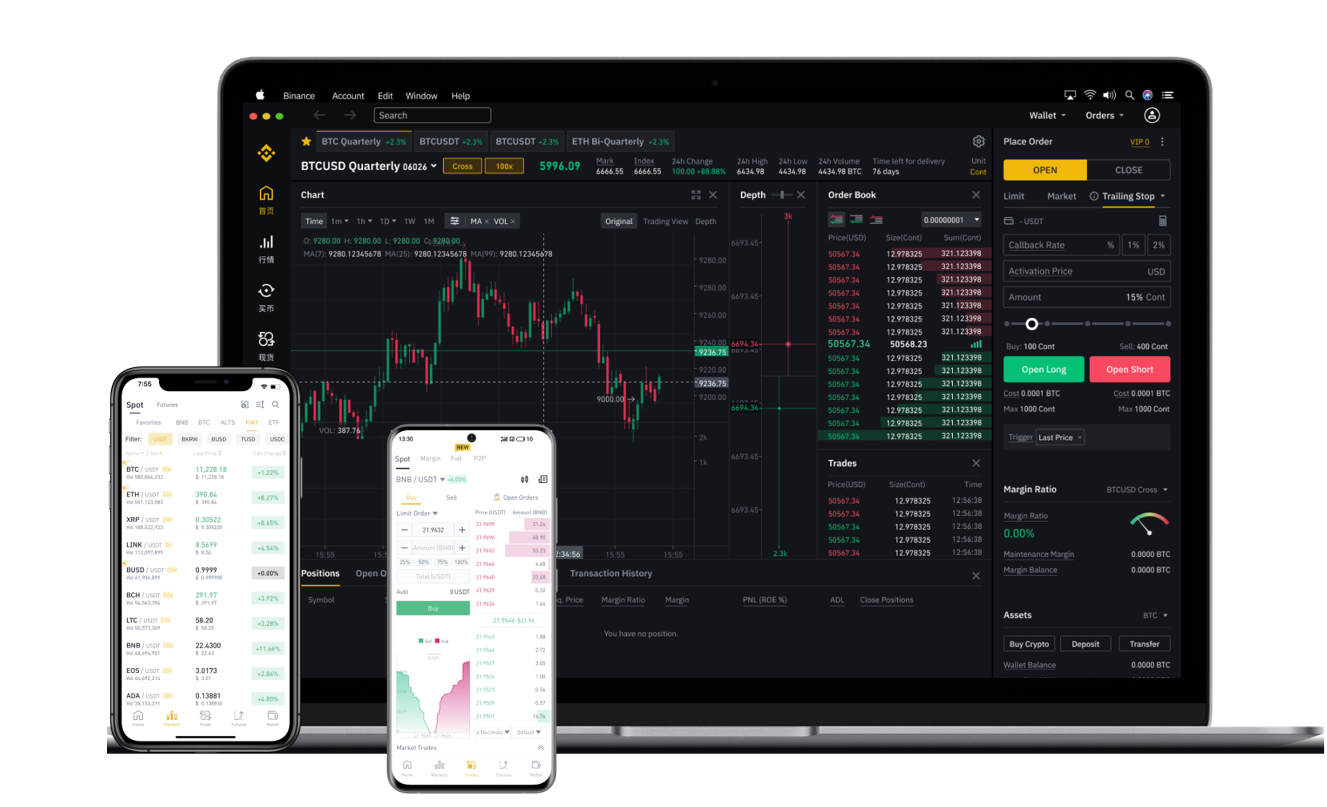
How to Transfer TP Wallet Tokens to Binance Exchange via Binance Smart Chain (BSC)
Transferring digital assets from your TP Wallet to your Binance exchange account is a common operation for crypto users. When using the Binance Smart Chain (BSC) network, the process involves sending tokens from your wallet’s BSC address to the deposit address provided by Binance. This guide will walk you through the necessary steps to complete a BSC transfer securely and efficiently.
Before starting, ensure that both your TP Wallet and Binance account are ready. Your TP Wallet must have a small amount of BNB (Binance Coin) on the BSC network to cover transaction fees. Without BNB, the transfer cannot be processed. On Binance, you need to have a verified account and ensure that BSC deposits are available for the specific token you wish to transfer.
Step one: Access your Binance exchange account and navigate to the “Wallet” section, then select “Deposit.” In the search bar, type the name of the token you want to transfer (e.g., USDT, CAKE, BNB). Choose the token and then look for the network option. It is crucial to select “BEP-20” (Binance Smart Chain) from the dropdown menu. The exchange will generate a deposit address and a network identifier. Copy this deposit address carefully. Any error in the address or network will result in permanent loss of funds.
Step two: Open your TP Wallet application. On the main screen, find the token you intend to transfer. Tap on it to view your balance. Look for the “Send” button. When prompted, paste the deposit address you copied from Binance into the recipient address field. Double-check that the address is correct. TP Wallet allows you to see a preview of the address, and you should verify the first and last few characters against the address shown on Binance.
Step three: Select the network. TP Wallet will automatically detect the network based on the token. However, you must manually confirm that it is set to “Smart Chain” (Binance Smart Chain) or “BEP-20.” This is a critical step because sending a token on the wrong network (e.g., ERC-20 instead of BEP-20) can cause the transaction to fail or be lost. Enter the amount you wish to transfer. TP Wallet will display the estimated gas fee in BNB. Review the total transaction cost.
Step four: Confirm the transaction. After entering the amount and network, tap “Send” or “Confirm.” Your TP Wallet will ask you to verify the details one final time. Check the recipient address, the network, and the fee. Once you approve, the transaction is broadcast to the BSC network. It usually takes 10 to 30 seconds to process, depending on network congestion.
Step five: Return to your Binance exchange account. Go to the “Deposit History” or “Wallet” section and look for pending deposits. You should see the transaction appear within a few minutes. Binance requires a certain number of block confirmations (usually 15 to 30 for BEP-20) before the funds are credited to your account. Once confirmed, the balance will be added to your Binance wallet. You can now trade, withdraw, or hold the tokens as needed.
Important considerations: Always use the BEP-20 network for both wallets. Using a different network version (such as BEP-2 for Binance Chain) will not be compatible with the BSC address. Also, set a reasonable gas limit. TP Wallet often suggests an optimal fee, but you can adjust it slightly higher if the network is busy. Do not attempt to change the gas limit too low, as it can cause the transaction to stall. Finally, keep your TP Wallet seed phrase and private keys offline. Never share them with anyone.
By following these steps carefully, you can transfer tokens from your TP Wallet to Binance exchange via the Binance Smart Chain quickly and safely. The key is verifying the network, address, and fee at every step. This method is widely used for its low fees and fast settlement times.